Within the next subcategory, you’ll find your Cost Manager Dashboard…
To Review Cost Manager:
-
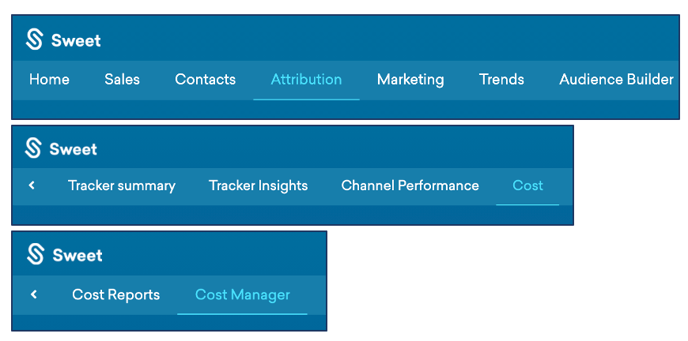
Scroll back up to the top of the homepage to the navigation tabs
-
Select Category: Attribution
-
Select Subcategory: Cost
-
Select Subcategory: Cost Manager
This Provides:
-
A place to manage all of your marketing costs in one place.
-
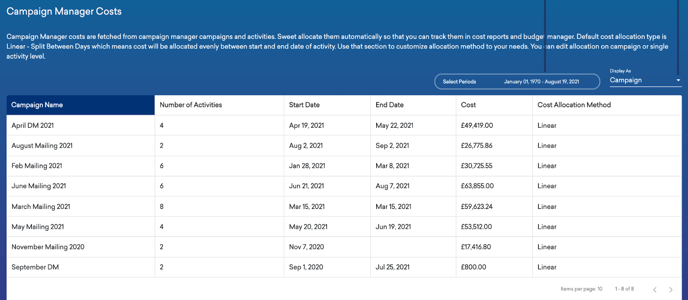
The automation allocation of campaign and activity costs, enabling you to track them in cost reports and budget manager.
Default cost allocation type is Linear - Split Between Days...
- The cost will be allocated evenly between the start and end date of the activity.
- Use that section to customize the allocation method to your needs.
- You can edit allocation on a campaign or single activity level.
As you scroll down Cost Manager...
You’ll observe:
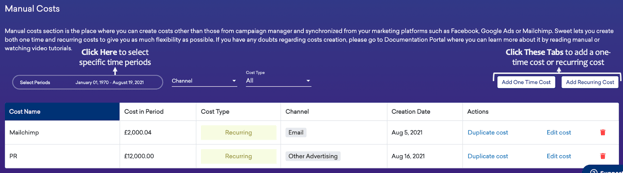
- Your Manual Costs Dashboard, detailing your cost source, costs in period, cost type, channel and creation date.
This provides:
- A place to create costs separate from those within the campaign manager, synchronized from your marketing platforms such as Facebook, Google Ads or Mailchimp.
- The ability to create both one time and recurring costs to provide as much flexibility as possible.