Below you'll observe how to access and review the Campaign Report Dashboard...
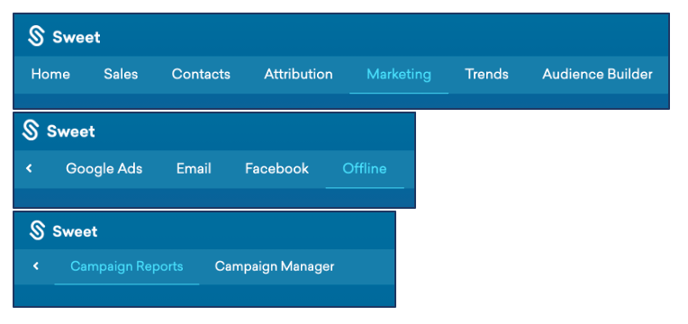
- At the top of the homepage, you'll observe the navigation tabs
- Select Category: Marketing
- Select Subcategory: Offline
- Select Subcategory: Campaign Reports
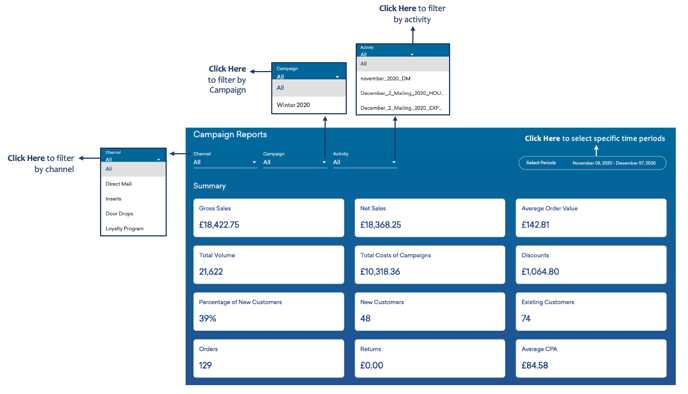
This Reports:
- A summary of the key campaign metrics by channel, campaign type/name and activity, over a select chosen period.
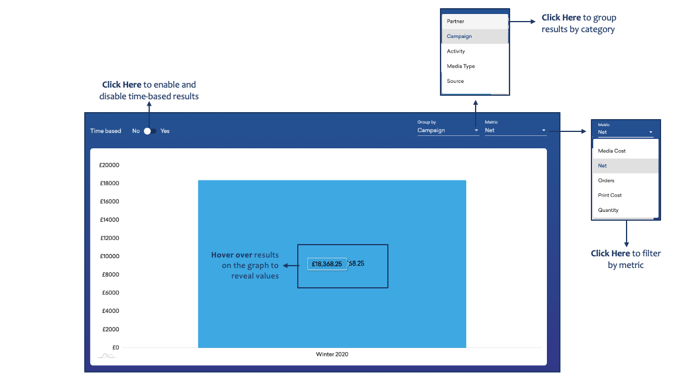
As you scroll down your Campaign Reports Dashboard…
You’ll observe:
- Your Campaign Reports represented in a bar chart format, categorised by group and metric chosen.
As you continue to scroll down your Campaign Reports Dashboard…
You’ll observe:
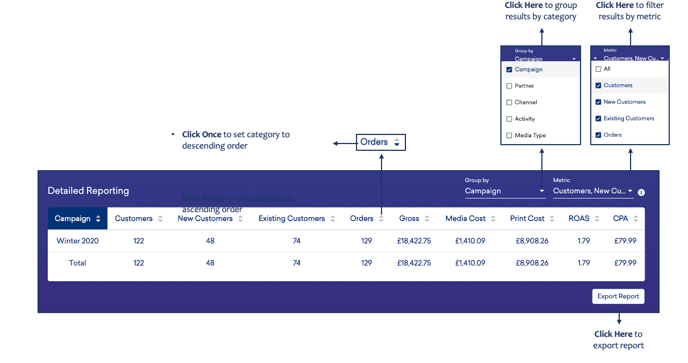
- A detailed report of your specified category group, by metric.
- Data outlining total customer, new customer, existing customer, total order, gross, media cost, print cost, return on ad spend and cost per acquisition per category.
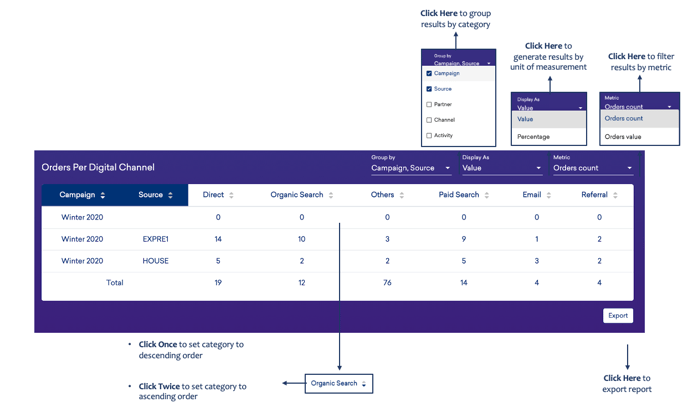
As you scroll down your Campaign Reports Dashboard…
You’ll observe:
- A detailed report of your orders per digital channel, filtered by specified category(s) and metric, and represented as either a value or percentage.
- Data outlining your total direct, organic search, paid search, email, and referral orders per category.