Below you'll observe how to access and review the Campaign Manager Dashboard...
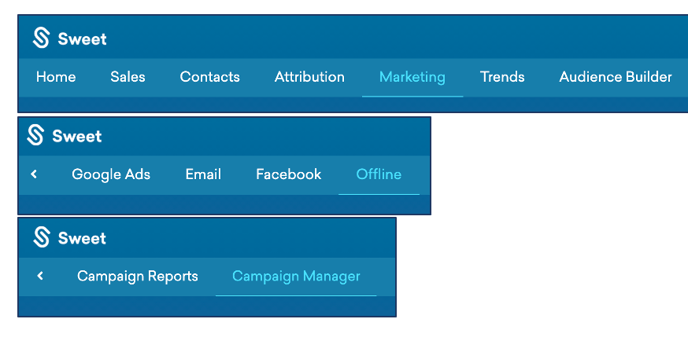
- At the top of the homepage, you'll observe the navigation tabs
- Select Category: Marketing
- Select Subcategory: Offline
- Select Subcategory: Campaign Manager
This Provides:
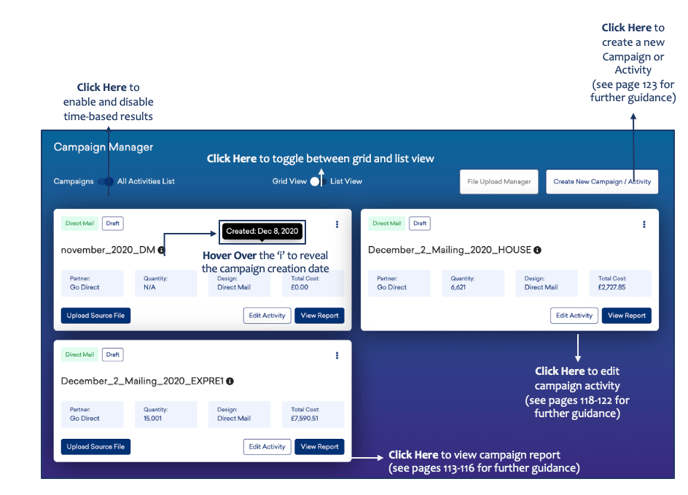
- Reports which summarise individual campaigns, as well as providing more detailed insights and editing capabilities through click-through functionality.
- Manual and automated campaign upload functionality.
To Add a New Newspaper Campaign or Activity within your Campaign Manager Dashboard…
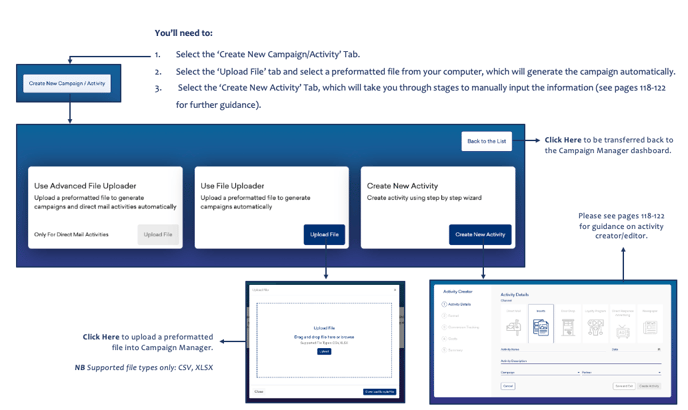
You’ll need to:
- Select the ‘Create New Campaign/Activity’ Tab.
- Select the ‘Upload File’ tab and select a preformatted file from your computer, which will generate the campaign automatically.
- Select the ‘Create New Activity’ Tab, which will take you through stages to manually input the information (see below for further guidance).
Once you enter the Campaign/Activity Creator…
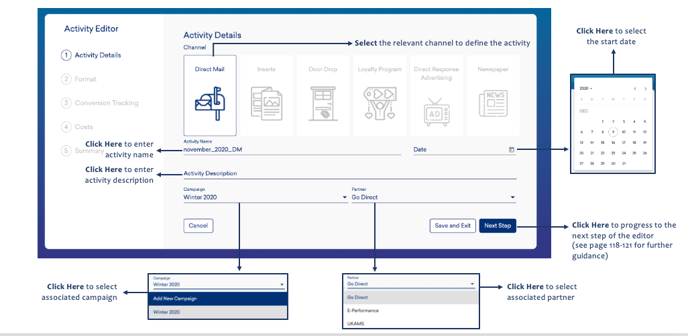
You’ll observe:
-
An Activity details section, where you will need to select the Direct Mail activity channel, name, date, description, and associated campaign and partner.
As you continue through the Direct Mail Campaign/Activity Creator...
You’ll observe:
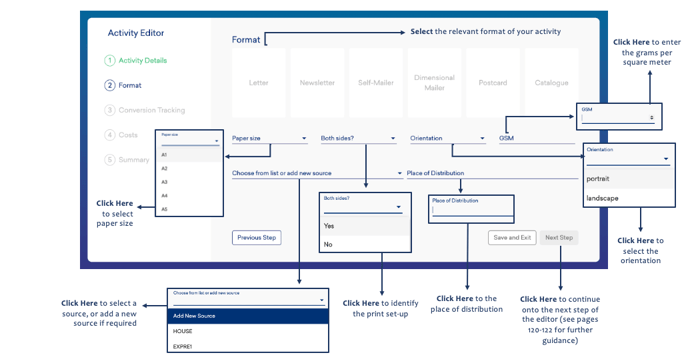
- Your Direct Mail Activity formatting section, where you will need to select your activity format, paper size, print set-up, orientation, grams per square meter, source, and place of distribution.
As you continue through the Direct Mail Campaign/Activity Creator...
You’ll observe:
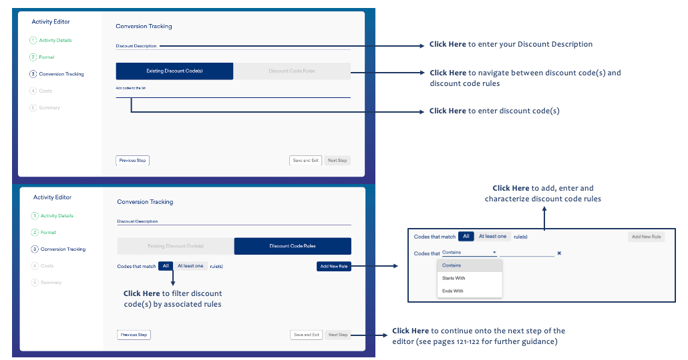
- Your Direct Mail activity conversion tracking section where you will need to upload either a Cold List or House File source file to tag each user record with a Direct Mail touchpoint.
- You can skip this step and go back to it later if you don't have the file available.
As you continue through the Direct Mail Campaign/Activity Creator...
You’ll observe:
-
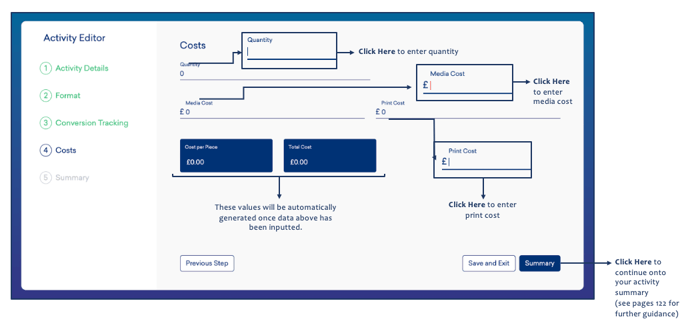
Your Direct Mail activity cost section, where you will need to enter your activity quantity, media and print cost.
-
An automatically generated cost per piece and total cost value, once you have inputted data above.
As you continue through the Direct Mail Campaign/Activity Creator...
You’ll observe:
-
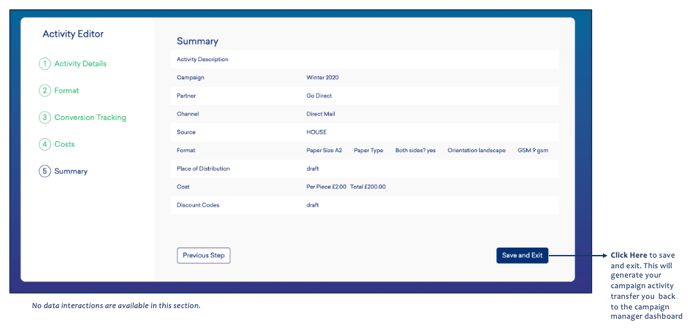
Your Direct Mail activity summary, where you will observe all features and choices that were input throughout the editor process.
To Edit a Direct Mail Campaign or Activity, you'll need to enter the Activity Editor…
- On the Campaign Manager Dashboard, select the 'edit campaign' icon
- This will open the Campaign/Activity Editor
- Follow instructions from the Campaign/Activity Creator above to observe how to input data and progress through the wizard.