Below you'll observe how to edit an Audience through the Audience Editor Wizard...
- At the top of the Homepage, you'll observe the navigation tabs
- Select Category: Audience Builder
- Select the 'View and Edit' Audience Tab
Once you enter your Audience Editor…
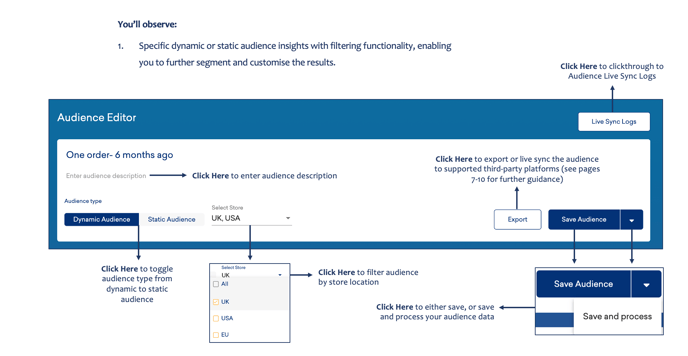
You’ll observe:
- Specific dynamic or static audience insights with filtering functionality, enabling you to further segment and customise the results.
As you continue through the Audience Editor Wizard…
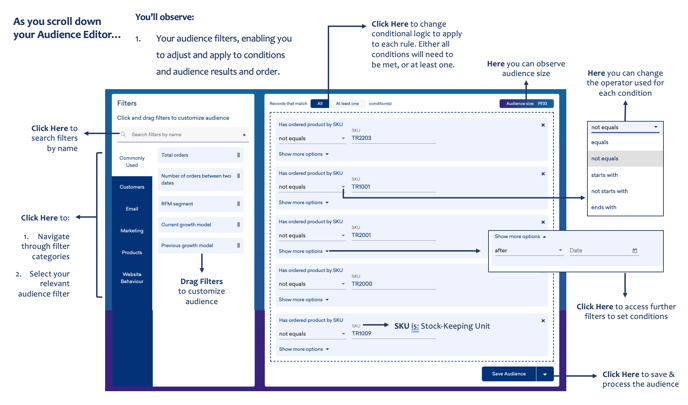
You’ll observe:
- Your audience filters, enabling you to adjust and apply to conditions and audience results and order.
Within a specific Audience Edit functionality…
You’re able to:
- Live Sync Third Party Dashboards to Customized Audiences
- Observe and track your customized audiences in MailChimp, Facebook, Klaviyo, Google Ads, Campaign Monitor, Dot Digital, HubSpot, and Zendesk.
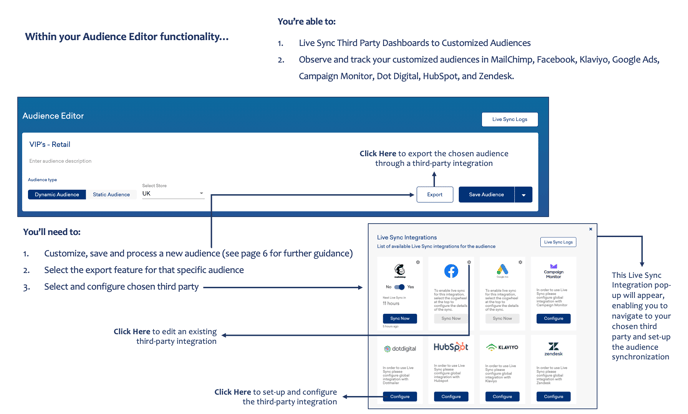
You’ll need to:
- Customize, save and process a new audience (see the Audience Creator Article for further guidance)
- Select the export feature for that specific audience
- Select and configure the chosen third party
For guidance on how to Live Sync Audience Integrations, please click here.
For guidance on how to access and review Live Sync Logs, please click here.